Protect Your Computer in Storage: Packing Tips for Desktops, Laptops, and Monitors
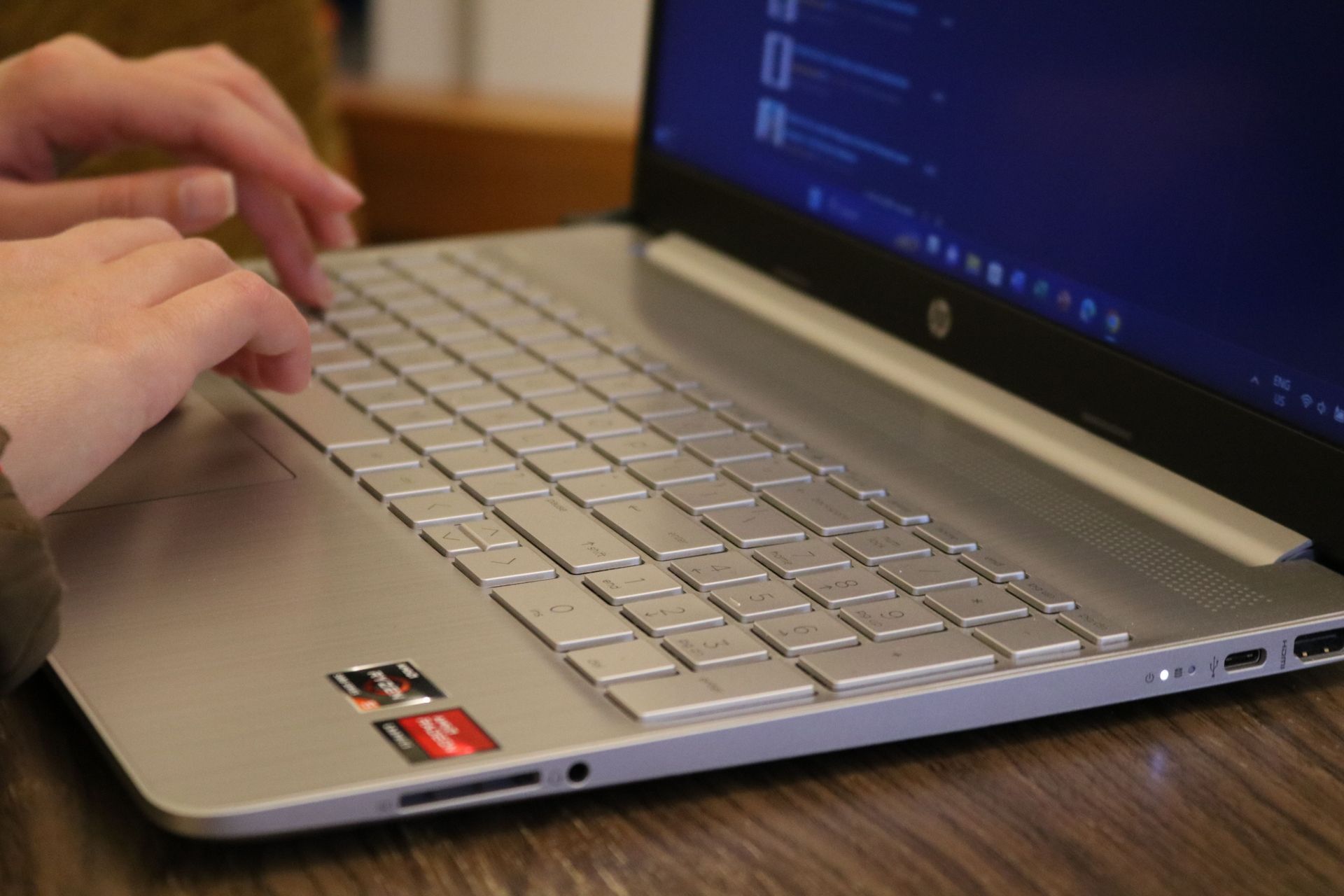
Computers need more preparation for storage than most household belongings. Dust, moisture, physical pressure, and unsuitable temperatures can affect electronic components, particularly when equipment will remain unused for several months. A desktop computer also has separate parts that need to be packed and protected during transportation.
Learning how to store a computer in a storage unit starts with protecting your files and preparing the equipment before it leaves your desk. At Towne Storage, we offer storage options in Utah and Nevada, including climate-controlled units at select properties for belongings that benefit from a more stable indoor environment.
Back Up Your Files Before Storing a Computer
Before disconnecting your computer, back up any important files. Documents, photographs, work projects, and personal records should have a separate copy that remains accessible while the computer is in storage.
Use an external drive or a trusted cloud backup service, and verify that the files can be opened from the backup. Don't assume the backup worked simply because the transfer finished. If you're storing a work computer, follow your employer's data security and backup requirements before moving the equipment.
Keep Important Data Accessible
A computer placed in storage might remain unused longer than expected. If you need a document during that time, retrieving the entire machine just to access one file can be inconvenient.
Keep copies of frequently needed documents somewhere secure and accessible. Sensitive information should remain protected with appropriate encryption and account security measures. Avoid leaving passwords or recovery codes taped to the computer or packed alongside the equipment.
Shut Down and Disconnect the Computer Properly
Once your files are backed up, shut down the computer through its operating system rather than disconnecting the power while it's running. Allow the equipment to cool before packing it, particularly if it has been operating for several hours.
Disconnect the power cable, monitor, keyboard, mouse, and other accessories. If you're working with a desktop computer, photograph the cable connections before unplugging everything. These pictures will make setup easier when you retrieve the equipment.
Organize Cables and Accessories
Loose cables can become tangled or misplaced during storage. Coil them gently without creating tight bends, then secure them with reusable cable ties or soft straps.
Label cables according to the devices they belong to, especially when storing several computers or monitors together. Keep small adapters, removable accessories, and mounting hardware in separate labeled bags. Avoid placing heavy accessories directly against a monitor screen or laptop lid.
Clean the Computer Before Packing It
Dust collects around computer vents, fans, keyboards, and connection ports. Before storing the equipment, clean its exterior using methods recommended by the manufacturer.
Use a soft microfiber cloth for screens and exterior surfaces. Avoid spraying liquid directly onto electronics or allowing moisture to enter ports and ventilation openings. If you're cleaning a desktop computer's vents, use an appropriate method that won't damage internal components or force debris farther inside.
Make Sure Everything Is Completely Dry
Even small amounts of moisture can create problems when electronic equipment is packed away. If you've used a manufacturer-approved cleaning solution, allow all treated surfaces to dry before placing the computer in its packaging.
Don't wrap equipment immediately after cleaning if moisture remains around the keyboard, screen edges, or ports. Packing a computer while damp increases the risk of corrosion and other damage during storage.
How to Pack a Desktop Computer for Storage
Desktop towers contain circuit boards, cooling components, and other parts that can be damaged by sudden impacts. The safest packaging is usually the computer's original box with its fitted protective inserts.
If the original packaging is unavailable, choose a sturdy box large enough to accommodate appropriate cushioning around the tower. Use antistatic packaging where required, especially for exposed electronic components. Avoid allowing loose packing materials to enter ventilation openings or exposed ports.
Protect Internal Components During Transportation
Some desktop computers contain large graphics cards or heavy cooling assemblies that place additional strain on their mounting points during transportation. Check the manufacturer's recommendations before moving these systems.
If internal components require removal or additional support, follow the manufacturer's instructions or seek qualified technical assistance. Don't dismantle unfamiliar equipment solely for storage. For many standard desktop computers, careful exterior packing and stable transportation are sufficient.
Store the Tower in a Stable Position
Position the desktop tower according to the manufacturer's storage and transportation guidance. Keep it in a stable location where it cannot fall or be crushed by heavier belongings.
Avoid stacking furniture, appliances, or heavy boxes on top of the computer's packaging. If you're storing several towers, arrange them so their weight is properly supported rather than balancing one unit on another.
How to Store a Laptop in a Storage Unit
Laptops require less physical space than desktop computers, but their screens, hinges, and batteries need attention before storage. Shut down the laptop completely and disconnect its charger and external devices.
Clean the screen and keyboard, then place the laptop in a padded sleeve or its original protective packaging. Don't store heavy objects on top of the lid because pressure can damage the display or keyboard.
Prepare the Laptop Battery
Most modern laptops use rechargeable lithium-ion batteries. Battery preparation depends on the device and how long it will remain unused, so follow the manufacturer's storage instructions rather than applying the same procedure to every model.
Some manufacturers recommend storing devices with a partial battery charge rather than leaving them fully charged or completely depleted. For longer storage periods, check whether the manufacturer recommends periodic charging or battery maintenance.
Avoid leaving a laptop in a storage environment outside the temperature range specified for its battery. Excessive heat and extreme cold can affect battery performance and longevity.
How to Pack a Computer Monitor
Monitors are particularly vulnerable to physical damage because their screens aren't designed to support pressure. The original box and fitted protective materials are usually the best packaging option.
If those materials are unavailable, use a suitable monitor box with protective inserts. Cover the screen with a clean, nonabrasive material before adding padding, and make sure the packaging doesn't press directly against the display.
Should You Store a Monitor Upright or Flat?
Most monitors are best stored upright in their intended orientation, unless the manufacturer's instructions specify otherwise. Laying a large display flat can expose the screen to pressure from surrounding objects.
If the monitor stand can be removed safely, follow the manufacturer's instructions and store the stand separately. Keep the mounting hardware labeled and protected. Position the boxed monitor where it won't be knocked over or used to support other belongings.
Is Climate-Controlled Storage Necessary for Computers?
Climate-controlled storage is worth considering for computers because electronic components are sensitive to environmental conditions. Large temperature changes and moisture exposure can affect circuit boards, connections, and other internal parts.
At Towne Storage, we offer climate-controlled storage at select locations, including our Aspen and 900 South properties in Salt Lake City, Utah. These facilities provide options for renters who need indoor space for electronics or other temperature-sensitive belongings.
Climate control helps maintain a more consistent environment, but it doesn't eliminate the need for careful packaging. Computers still need protection from dust, impact, and moisture introduced before storage.
What About Long-Term Computer Storage?
If you're leaving a computer unused for several months or longer, follow the manufacturer's storage temperature and humidity limits. These specifications are especially important for laptops with rechargeable batteries and equipment containing sensitive electronic components.
Our guide to safely storing belongings for the long term covers cleaning, protective packaging, and organizing a unit so stored belongings remain accessible for periodic checks.
Keep Computers Off the Floor
Avoid placing computer boxes directly on a bare concrete floor, particularly during longer storage periods. A sturdy shelf or stable platform keeps the equipment separated from potential floor moisture and reduces the chance of accidental contact with other belongings.
Choose shelving that can support the weight of the equipment and keep heavier boxes on lower levels. Don't place computer equipment on unstable stacks of cardboard boxes. If you're storing multiple monitors or towers, leave enough space to retrieve individual pieces without disturbing the rest.
Label Equipment Without Exposing Sensitive Information
Clear labels make it easier to identify computer equipment when several devices are stored together. Mark each box with a general description, such as "desktop tower" or "computer monitor," and indicate any handling requirements.
For business equipment, consider using an internal inventory number rather than displaying sensitive identifying information on the outside of the box. Maintain a separate inventory showing which devices are stored and where their accessories can be found.
Keep Business Computers and Records Organized
Businesses sometimes need temporary storage for unused computers, replacement equipment, or office furniture during a relocation. Keeping devices organized by department or workstation reduces confusion when the equipment is returned to service.
At Towne Storage, we also provide storage options for business belongings. Our article about protecting business assets and important documents discusses additional considerations for organizing and storing valuable business materials.
Before storing company-owned devices, confirm that the arrangement meets your organization's requirements for physical security, data protection, and equipment handling.
How Much Storage Space Do Computers Need?
A single laptop or desktop computer doesn't require much room, but monitors, packaging, and accessories increase the total space needed. If you're storing an entire workstation, measure the packed equipment rather than estimating space based on the computer alone.
At Towne Storage, smaller units such as 5x5 and 5x10 spaces are among the options available at certain properties. These sizes may accommodate boxed computer equipment and office supplies, depending on the number of items and their dimensions.
Check the actual unit measurements and available features before selecting a space. If you expect to retrieve equipment periodically, leave enough room to reach the boxes without moving heavier belongings.
What to Do Before Using a Computer After Storage
When you retrieve your computer, inspect the packaging and equipment before connecting it to power. Look for signs of moisture, corrosion, damaged cables, or physical impact.
If the computer has been exposed to cold conditions, allow it to return to a suitable indoor operating temperature before turning it on. Follow the manufacturer's guidance on acclimation and condensation, especially if the equipment has moved between environments with substantially different temperatures.
Once the computer is ready, reconnect its accessories and check that the system starts normally. Confirm that important files remain accessible and inspect the equipment for any problems before returning it to regular use.
Find the Right Environment for Your Electronics
Proper computer storage starts before the equipment enters the unit. Backing up files, cleaning components, using protective packaging, and following battery storage instructions all reduce avoidable risks.
For electronics that will remain unused for an extended period, the storage environment deserves particular attention. You can
explore
storage options from Towne Storage to compare available units and identify locations offering climate control. Checking those features alongside the equipment manufacturer's storage requirements will help you choose an appropriate space.